How to Configure CryptoTerm for Secure SSH and SFTP Connections – Step-by-Step Guide


Asif Mohammad Sovon
Asif Mohammad Sovon, IT Assistant at Bangladesh Air Force and Fileion tech writer, simplifies tech t...
You need to securely connect to a remote server. You open your terminal client, and things go wrong. Wrong port. Wrong cipher. Connection refused. Sound familiar?
Setting up a secure SSH or SFTP connection should not feel like guesswork. With the right tool and the right settings, you can be up and running in minutes.
CryptoTerm is one of those tools. It handles SSH, SFTP, and terminal emulation in one place. Whether you are a sysadmin, developer, or student managing remote files, this guide walks you through every step.
Let's dive into the basics before moving to the hands-on steps.
What is CryptoTerm?
CryptoTerm is a Windows-based terminal emulation and secure file transfer package developed by JT-Soft. It bundles three programs into a single installation: a Terminal Emulator, an FTP/SFTP Client, and a Batch FTP/SFTP Client.
The tool supports encrypted connections through SSH (v1 and v2), SSL 3.0, TLS 1.0, Telnet, Serial RS-232, and Modem. For authentication, it covers Password, Public Key, Keyboard-Interactive, Kerberos, PKCS#11, X.509, and NTLM methods.
System administrators use it to manage Linux, Unix, and Windows servers. Developers use it for secure file transfers. IT professionals and mainframe users rely on it for TN3270 emulation and IBM system access. Students and home users get the full feature set completely free for personal use.
Key Features include Secure, Multi-Protocol Connections, Wide Authentication Support, Broad Terminal Emulation, Two-Panel File Manager Interface, Session Logging, and Automation.
Step-by-Step Guide: How to Configure CryptoTerm for Secure SSH and SFTP Connections
-
Download CryptoTerm from our site and run the installer. The setup takes under three minutes and installs without any bundled software or extra add-ons.
-
Open CryptoTerm after installation. The main window shows the Terminal Emulator and the FTP Client as separate sections. Start with the FTP Client panel for SFTP setup.
-
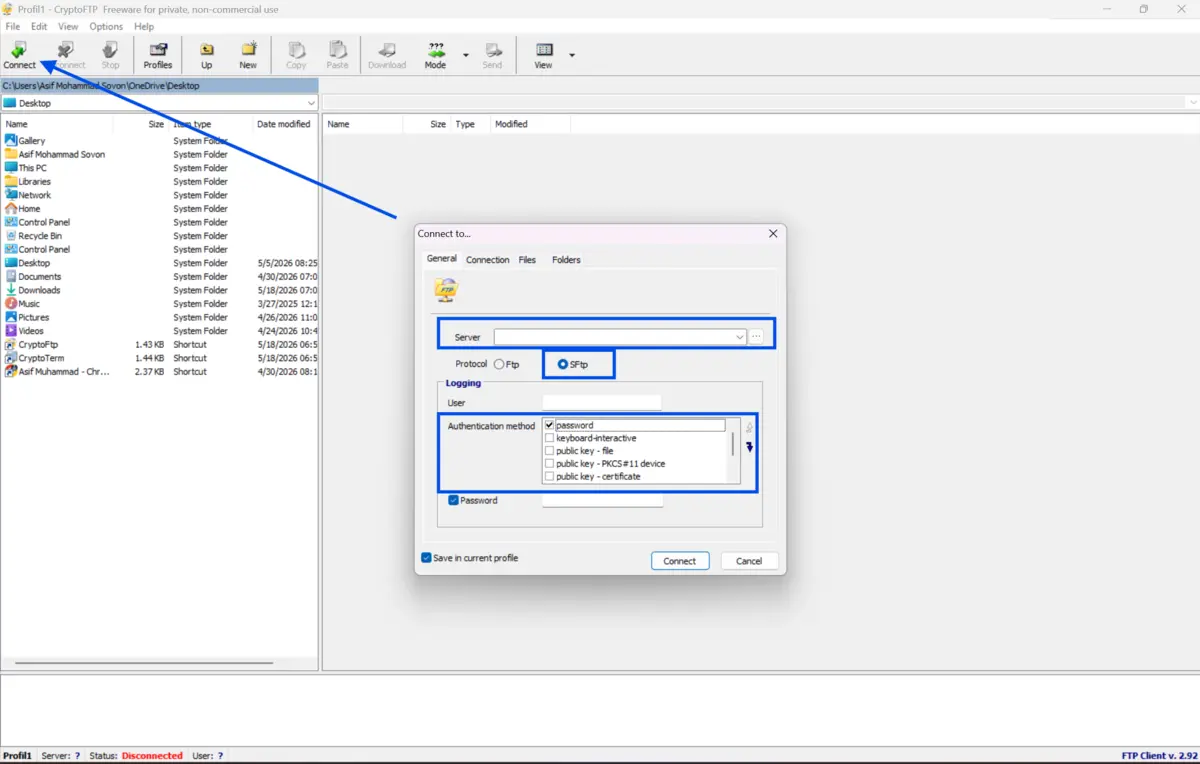
Click on the new connection or profile option inside the FTP Client. A configuration window opens where you enter your connection details.
-
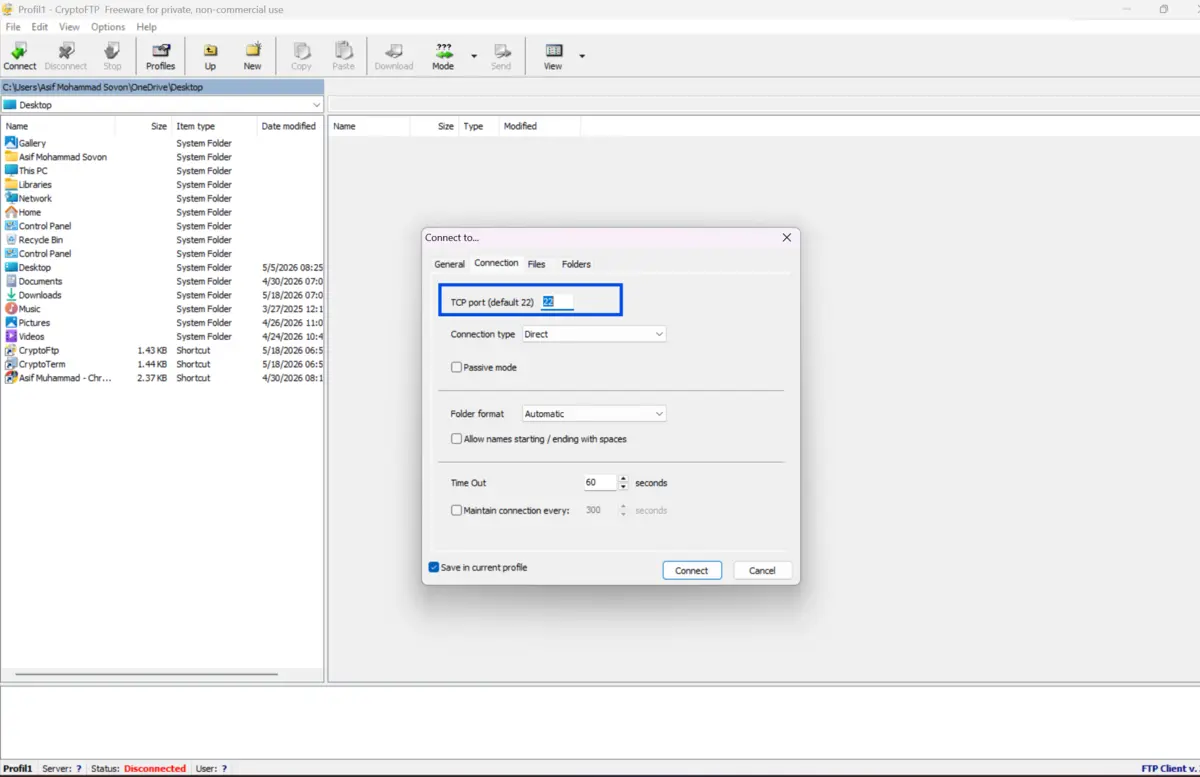
Enter your server's IP address or hostname in the server address field. Set the port to 22 for SSH and SFTP connections. Port 22 is the default for both protocols.
-
Select SFTP as the connection type from the protocol dropdown menu. This ensures your file transfers use the SSH layer and not plain FTP.
-
Choose your authentication method. For password-based login, enter your username and password. For key-based login, select the Public Key option and point CryptoTerm to your private key file stored on your local machine.
-
If you are using PKCS#11 hardware tokens or X.509 certificates, navigate to the authentication settings and load the appropriate certificate or device library path. This step applies to enterprise and compliance-heavy environments.
-
Save your configuration as a named profile. This stores the server address, port, protocol, and authentication settings, so you can reconnect with one click without re-entering details each time.
-
Open the SSH Terminal Emulator for command-line access. Click on New Connection and enter the same host details. Select your terminal emulation type, such as XTERM or VT100, to match your remote server environment.
-
Test the connection by clicking Connect. The status window shows the current profile name, server address, username, and live connection status, including connected, logging, and transmission states.
-
Transfer files by dragging them from your local panel to the remote panel or using copy and paste. Enable session logging before large transfers to keep a record of all operations in plain text or RAW format for auditing purposes.
Quick Tips
-
Use named profiles for every server you connect to regularly. Switching between servers takes one click instead of re-typing credentials each time.
-
Enable cipher warning notifications in the security settings. This alerts you when a connection falls back to a weaker algorithm, so you can take action immediately.
-
Use the Batch FTP Client for scheduled or repeated file transfers. It runs scripts in the background without needing you to manage each transfer manually.
-
Export session logs after sensitive transfers. Plain text logs give you a readable audit trail. RAW logs capture every byte for technical review.
Common Mistakes to Avoid
-
Port 21 is for standard FTP. SFTP and SSH operate on port 22. Connecting on the wrong port causes immediate connection refusal and wastes troubleshooting time.
-
Leaving cipher settings on defaults can allow connections through older, weaker algorithms. Always review and set your preferred cipher list manually during initial setup.
Pricing and Availability
CryptoTerm is available as a licensed desktop application for Windows, with the same binary used across all installation types. No version is functionally limited.
For personal home use, it is completely free. For commercial use, you can install it in shareware mode and run it across any number of workstations for 30 days at no cost. After that trial period, you must purchase a license to continue using it legally, or uninstall the program. The shareware version displays a notification showing how much usage time remains.
The official website doesn’t provide fixed pricing details, and users are encouraged to contact the vendor directly for quotes or enterprise licensing options. Visit our site to download the latest version and get started today.
Final Verdict
CryptoTerm covers a lot of ground in a single package. It handles secure SSH terminal sessions, SFTP file transfers, batch automation, and legacy mainframe emulation without requiring separate tools for each task.
Students and individual system administrators benefit from a fully featured free version. Enterprise teams working with IBM systems, compliance-heavy environments, or complex authentication setups will find the PKCS#11, Kerberos, and X.509 support genuinely useful.
If you need a stable, secure, and all-in-one remote access and file transfer tool for Windows, CryptoTerm is worth your time. Download CryptoTerm from Fileion today and start configuring your first secure connection in minutes.
FAQs
Is CryptoTerm free to use?
Yes. CryptoTerm is free for personal and home use. The full package, including the terminal emulator and SFTP client, is available at no cost. Commercial use requires a paid license from JT-Soft.
What operating systems does CryptoTerm support?
CryptoTerm is a Windows-only application. It does not have native versions for macOS or Linux. It has been tested and confirmed to work on Windows 10 and Windows 11.
Does CryptoTerm support public key authentication?
Yes. CryptoTerm supports public and private key certificate authentication alongside password, Keyboard-Interactive, Kerberos, PKCS#11, X.509, and NTLM methods. You can load your private key file directly from the connection profile settings.
What is the difference between SSH and SFTP in CryptoTerm?
SSH in CryptoTerm opens an encrypted terminal session for running commands on a remote server. SFTP uses the same SSH encryption layer but is specifically for transferring files between your local machine and the remote server using the two-panel file manager interface.
Can CryptoTerm automate file transfers?
Yes. CryptoTerm includes a Batch FTP/SFTP Client that supports scripted and automated file transfers. You can write and run scripts to handle repetitive transfer tasks without manually managing each session.
Comments
Let us know about your thoughts
Explore more articles related to CryptoTerm
Here you will find all the latest tips and tricks about CryptoTerm. Also you will get many solution of problems which you may face while using this app.

Published at: Apr 18, 2026
How to Automate Mainframe Tasks Using CryptoTerm Scripting
Repetitive mainframe tasks eat up hours every week. Logging in, navigating menus, pulling reports, and entering...

Published at: Apr 24, 2026
Best CryptoTerm Alternatives for Windows 11
If you are looking for a reliable SSH and terminal emulation tool on Windows...


Your Universal Gateway to Secure Systems.
A secure all-in-one terminal emulator and encrypted FTP client for accessing and transferring files across diverse systems, from desktop OS to mainframes, all through a single, unified interface.