Fixing CryptoTerm "Connection Refused" Errors: A Troubleshooting Guide


Asif Mohammad Sovon
Asif Mohammad Sovon, IT Assistant at Bangladesh Air Force and Fileion tech writer, simplifies tech t...
What is a "Connection Refused" Error in CryptoTerm?
Step-by-Step Guide: How to Fix CryptoTerm "Connection Refused" Errors
What does "Connection Refused" mean in CryptoTerm?
How do I know if the problem is on my side or the server's side?
Can a firewall cause a "Connection Refused" error?
Why does CryptoTerm say "Connection Refused" after the server works fine?
You open CryptoTerm, type in your server address, hit connect, and nothing happens. The screen throws back a cold "Connection Refused" error. Sound familiar?
This is one of the most common and most frustrating errors users face when working with secure terminal software. It stops your workflow cold and rarely explains itself clearly.
But here is the good news. This error almost always has a fixable cause. Whether it is a misconfigured port, a blocked firewall, or a service that simply is not running, every "Connection Refused" message points to something specific.
In this guide, you will learn what this error means, why it happens, and how to resolve it step by step. No guesswork involved.
Let's dive into the basics before moving to the hands-on steps.
What is a "Connection Refused" Error in CryptoTerm?
A "Connection Refused" error in CryptoTerm indicates that the client attempted to connect to a remote host, but the host actively rejected the connection request.
Unlike a timeout, where the connection just disappears into silence, "Connection Refused" is a direct signal. The server received the request and said no. That distinction matters because it tells you exactly where to look.
Network administrators, developers, system operators, and crypto node runners commonly encounter this error. It appears when establishing SSH sessions, connecting to blockchain nodes, or running terminal-based server management tasks.
When fixed correctly, CryptoTerm resumes its role as a fast, encrypted, and reliable communication channel between your machine and the remote host.
Key Features of CryptoTerm include encrypted terminal sessions, multi-protocol support, & connection profile management.
Step-by-Step Guide: How to Fix CryptoTerm "Connection Refused" Errors
-
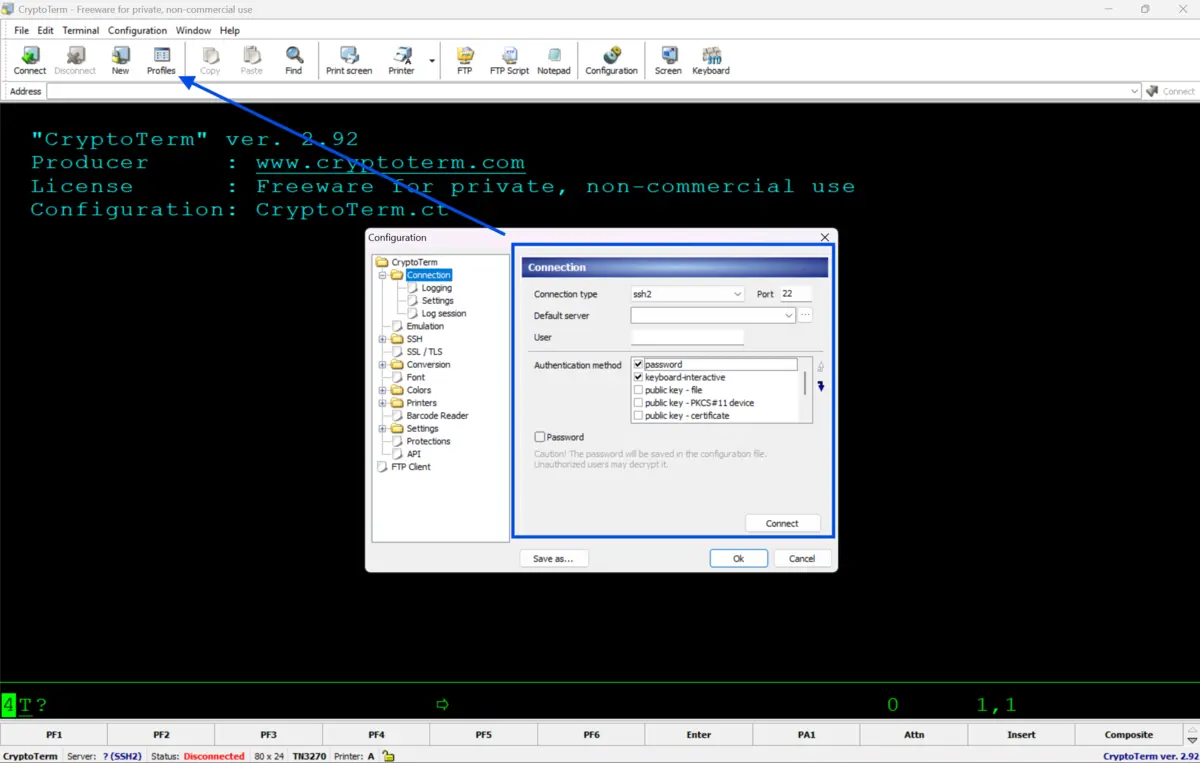
Verify the server address and port: Open your connection profile in CryptoTerm. Check the hostname or IP address for typos. Confirm the port number matches what the server is configured to accept. SSH defaults to port 22. Blockchain or custom services often use different ports.
-
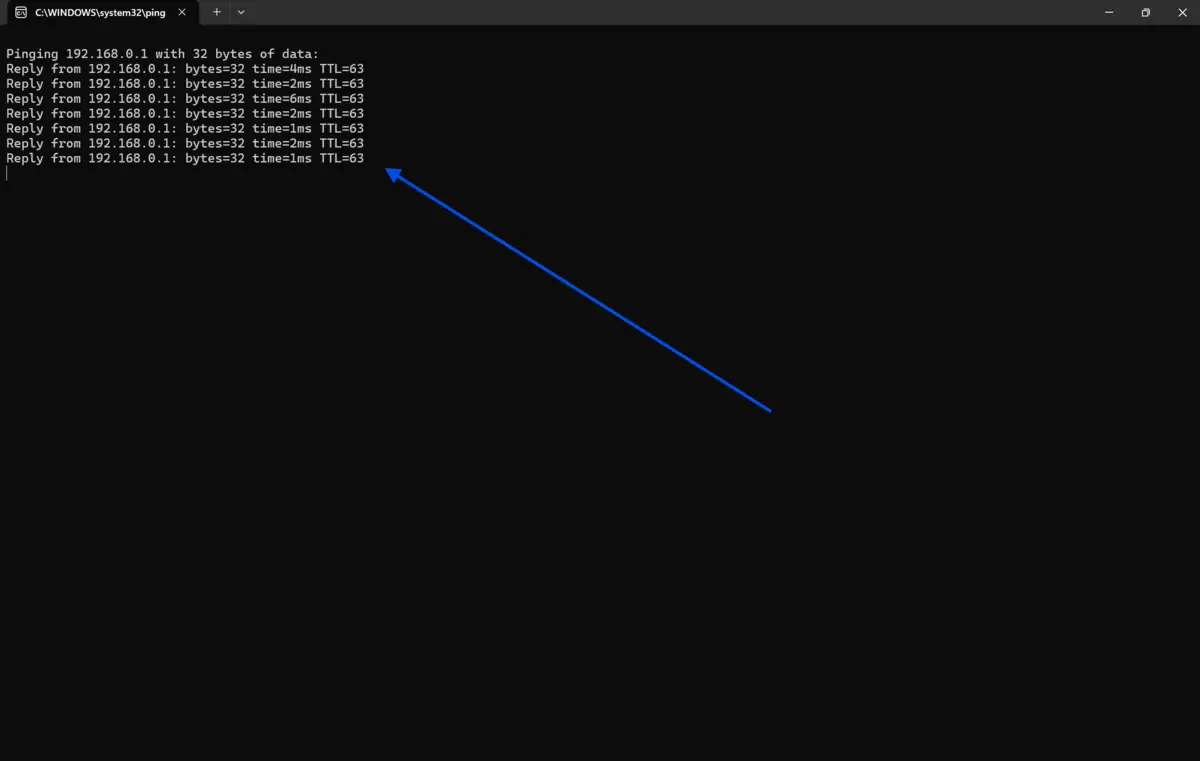
Ping the remote host: Open your local terminal or command prompt. Run
ping [server-IP]. If the ping returns a response, the server is reachable on the network. If it times out, the problem is deeper than just a refused connection.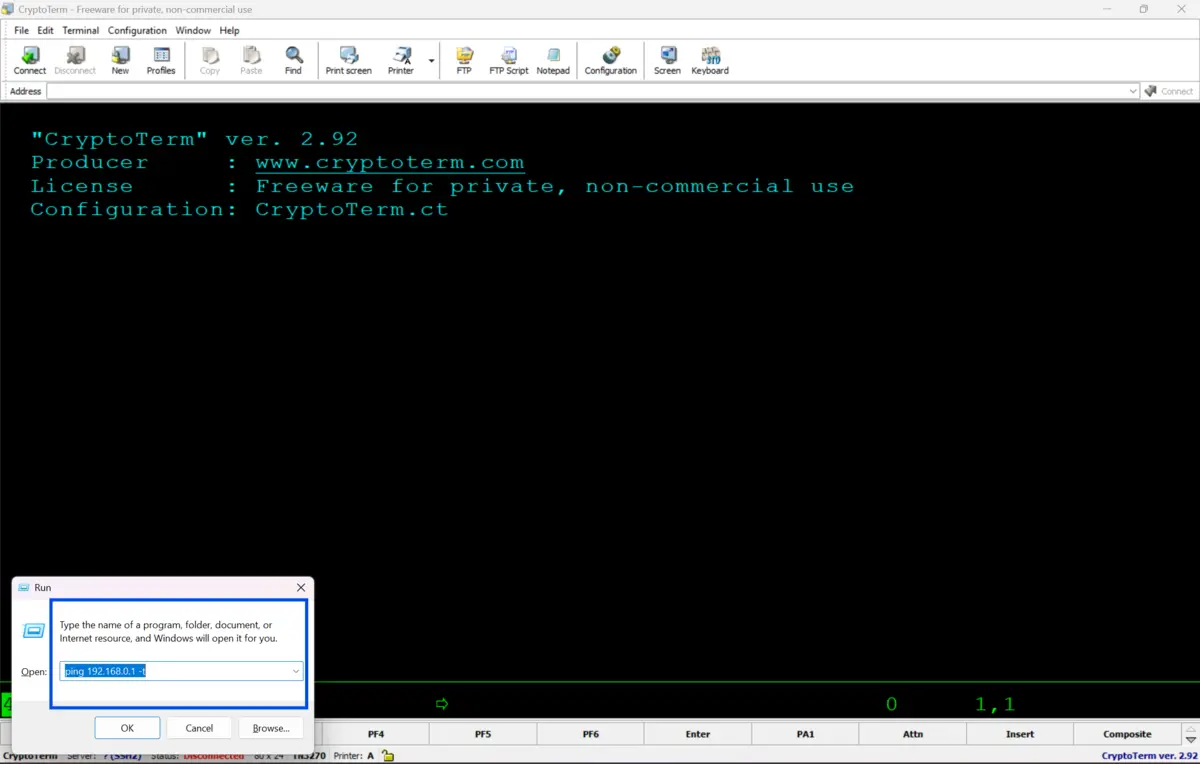
-
Check if the remote service is running: Log in to the server through an alternative method like console access, control panel, or backup SSH key. Run
sudo systemctl status sshor the equivalent for your service. A stopped service will refuse all incoming connections. -
Restart the remote service if it is down: If the service shows as inactive or failed, restart it with
sudo systemctl restart ssh. Then test your CryptoTerm connection again. -
Inspect the firewall rules: Run
sudo ufw statusorsudo iptables -Lon Linux servers. Check whether incoming traffic on your target port is allowed. A blocked port produces exactly this error in CryptoTerm. -
Open the required port if it is blocked: Use
sudo ufw allow [port]/tcpto allow the connection. For cloud servers, check your provider's security group or firewall panel (AWS, DigitalOcean, Azure, etc.) and add an inbound rule for the port. -
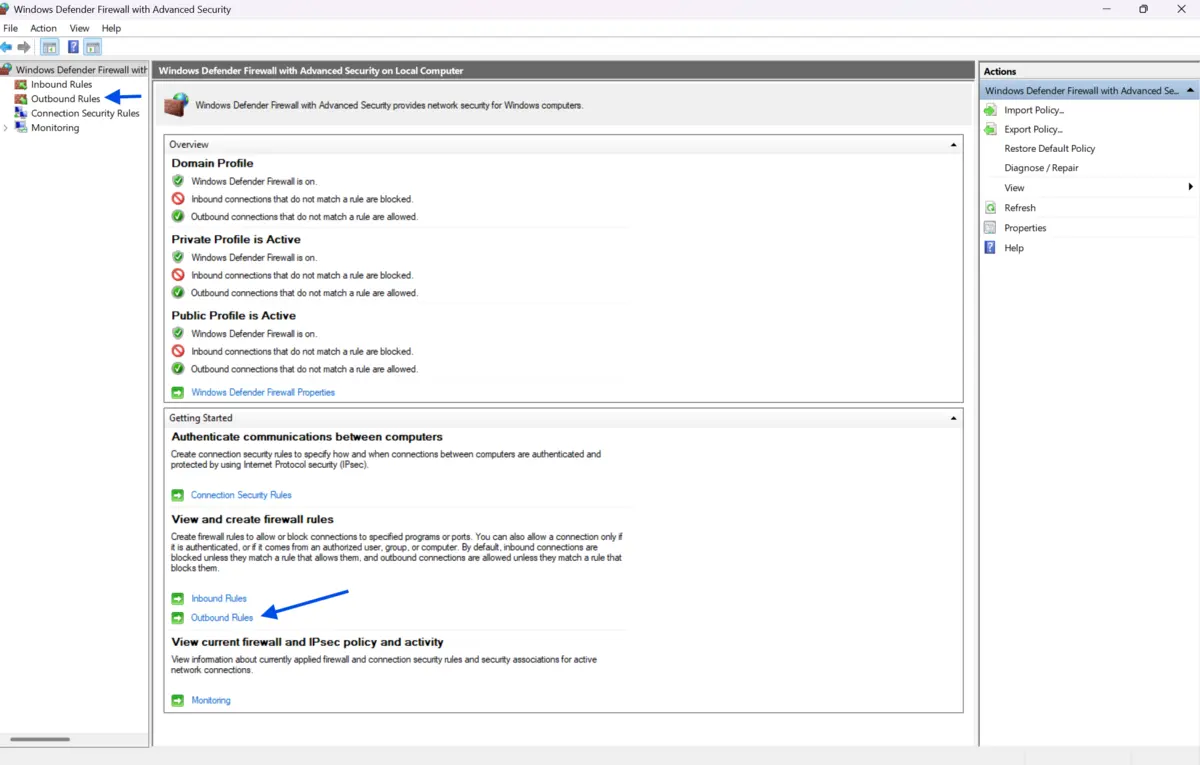
Check the local firewall: Your own operating system may block outbound connections. On Windows, open Windows Defender Firewall and review outbound rules. On macOS or Linux, check your local firewall settings and allow CryptoTerm to communicate freely.
-
Review the server's SSH: On the server, open
/etc/ssh/sshd_configfor SSH. Confirm thatListenAddressis set correctly and thePortmatches what you entered in CryptoTerm. If you make changes, restart the service afterward. -
Test with a different network: Switch from Wi-Fi to mobile data, or use a VPN. Some ISPs or corporate networks block specific ports. If the connection works on a different network, the issue is with your local network, not the server.
-
Update CryptoTerm: Outdated software can have protocol mismatches with newer server configurations. Download the latest stable version from our site and reinstall. Reconnect using your saved profile.
-
Check for IP bans or rate-limiting: Failed login attempts can trigger automatic bans via tools like Fail2Ban. On the server, run
sudo fail2ban-client status sshdto see if your IP is blocked. If it is, unban it withsudo fail2ban-client unban [your-IP]. -
Test the connection using a raw TCP check: Run
telnet [server-IP] [port]ornc -zv[server-IP] [port]from your local terminal. If this also fails, the problem is confirmed to be on the server side or on the network path, not inside CryptoTerm itself.
Quick Tips
-
Save tested, working connection profiles in CryptoTerm to avoid re-entering settings each session.
-
Always keep a backup access method, like console or VNC, for your server before making firewall changes remotely.
-
Use CryptoTerm's built-in connection log to capture error codes, which narrow down root causes faster.
-
When testing ports, use
ncinstead of telnet on modern systems for cleaner output.
Common Mistakes to Avoid
-
This is the single most common cause. Users often leave the default port (22) unchanged when the server is configured to listen on a custom port for security. Always verify the port directly in the server's configuration file.
-
Forgetting to reload the service after config changes, editing a configuration file without restarting the service has no effect. Any change to SSH or firewall settings requires a service restart or rules reload to take effect.
-
Many users check the server-side firewall but forget their cloud provider's security group, their router settings, or their local OS firewall. Each layer is independent and must be checked separately.
-
Assuming the server is running, services crash, updates cause unexpected stops, and servers reboot. Never assume the target service is active. Always verify it directly before troubleshooting deeper network issues.
-
Ignoring IP bans. Multiple failed login attempts from automated tools, forgotten credentials, or typos can trigger Fail2Ban or similar tools. This is often overlooked but is a straightforward fix once identified.
Pricing & Availability
CryptoTerm is available as a licensed desktop application for Windows, with the same binary used across all installation types. No version is functionally limited.
For personal home use, it is completely free. For commercial use, you can install it in shareware mode and run it across any number of workstations for 30 days at no cost. After that trial period, you must purchase a license to continue using it legally, or uninstall the program. The shareware version displays a notification showing how much usage time remains.
The official website doesn’t provide fixed pricing details, and users are encouraged to contact the vendor directly for quotes or enterprise licensing options. Visit our site to download the latest version and get started today.
Final Verdict
The "Connection Refused" error in CryptoTerm is specific, diagnosable, and fixable. It is not random. Every instance traces back to a service, a port, a firewall rule, or a configuration setting that can be located and corrected.
This guide walks you through every layer, from the server's running state and firewall rules to your local network and the CryptoTerm configuration itself. Following the steps in order keeps you systematic and saves time.
If you manage servers, run nodes, or rely on secure remote access, having CryptoTerm set up correctly is non-negotiable. Download CryptoTerm from Fileion today, apply the steps in this guide, and get your secure terminal sessions running without interruption.
FAQs
What does "Connection Refused" mean in CryptoTerm?
It means the remote server received your connection request but rejected it. This is different from a timeout. The server is reachable, but something, such as a stopped service, a closed port, or a firewall rule, is actively blocking the connection.
How do I know if the problem is on my side or the server's side?
Run a raw TCP check using nc -zv [server-IP] [port] from your local terminal. If that also fails, try from a different network. If the connection works on a different network, the issue is your local setup. If it fails everywhere, the problem is on the server side.
Can a firewall cause a "Connection Refused" error?
Yes. A firewall that blocks the target port will cause this error immediately. Check both the server-side firewall (UFW, iptables) and your cloud provider's security group rules. Also, verify your local OS firewall is not blocking CryptoTerm's outbound traffic.
Why does CryptoTerm say "Connection Refused" after the server works fine?
A service may have stopped running after a reboot, update, or crash. Check the status of the target service on the server. An IP ban from too many failed login attempts is another common cause after a previously working setup stops responding.
Do I need technical skills to fix this error?
Basic command-line familiarity helps. Most steps in this guide use standard terminal commands available on any Linux, macOS, or Windows system. If you can open a terminal and run a command, you can follow this guide and resolve the issue.
Comments
Let us know about your thoughts
Explore more articles related to CryptoTerm
Here you will find all the latest tips and tricks about CryptoTerm. Also you will get many solution of problems which you may face while using this app.

Published at: Apr 18, 2026
How to Automate Mainframe Tasks Using CryptoTerm Scripting
Repetitive mainframe tasks eat up hours every week. Logging in, navigating menus, pulling reports, and entering...

Published at: Apr 24, 2026
Best CryptoTerm Alternatives for Windows 11
If you are looking for a reliable SSH and terminal emulation tool on Windows...


Your Universal Gateway to Secure Systems.
A secure all-in-one terminal emulator and encrypted FTP client for accessing and transferring files across diverse systems, from desktop OS to mainframes, all through a single, unified interface.